Step 4: Move to Ajera 8
After you’ve test driven the Ajera 8 Sandbox, decide when you’re ready to move from Ajera 7 to Ajera 8. The update process makes it easy to bring the Sandbox dashboards you created into Ajera 8.
Before you Begin
When you decide to move to Ajera 8, choose to use the Sandbox dashboards you created, the original dashboard template, or no dashboards. The process automatically creates a backup of the Ajera 7 database and updates your latest Ajera 7 database to Ajera 8.
In the Ajera 8 Sandbox, export the Sandbox dashboards you want to use in the live Ajera 8.
To move to Ajera 8
- From the Ajera server, go to the Windows Start menu, and select All Programs > Ajera > Ajera Server Administration.
- From the Tasks menu, select Move to Ajera 8. The following screen appears:
| Warning: | Before you proceed, understand that you cannot restore the Sandbox or reset to Ajera 7. The next step deletes your Sandbox and updates your Ajera 7 database to Ajera 8. |
| Note: | This option will not be available to you if you are running Microsoft Server 2003. Please review the Hardware/Software requirements to figure out which version you need in order to update to Ajera 8. |
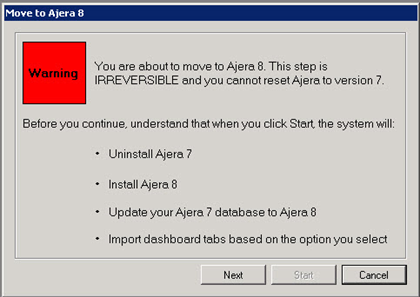
- Before clicking Next, confirm with your Ajera Administrator that you can continue with this process.
- On the next screen, choose one of the following dashboard tab options:
- Import all standard tabs – this option imports the dashboard tabs that Deltek provided as part of the original Sandbox installation.
- Import all tabs from your Sandbox – This option imports all tabs that currently exist in your Sandbox, including tabs you have created.
- Do not import any tabs – This option does not import any tabs into Ajera 8. Your employees will see only the Home tab on the Ajera 8 dashboard.
- Click Start. The system prompts you to verify that your Ajera Administrator has confirmed they are ready to move to Ajera 8.
When you click Yes, the system:- Exports the dashboard tabs you selected in the step above.
- Updates your current Ajera 7 database to Ajera 8.
- Imports dashboard tabs and their corresponding roles into your live version of Ajera 8. You can then associate employees and settings with those roles in your live Ajera 8 database.
- Overwrites the files in your C:\Ajera folder with the files from the Sandbox subfolder.
- Deletes the Sandbox subfolder.
- Messages confirm that you have successfully updated to Ajera 8. Share the Ajera 8 URL with your employees so that they can log into Ajera 8.
- You can import tabs into Ajera 8 at any time. If you have more than one database, import the dashboard tabs manually into each database. Refer to how to import dashboard tabs.